
1
1. Create an API key in SacredGPT
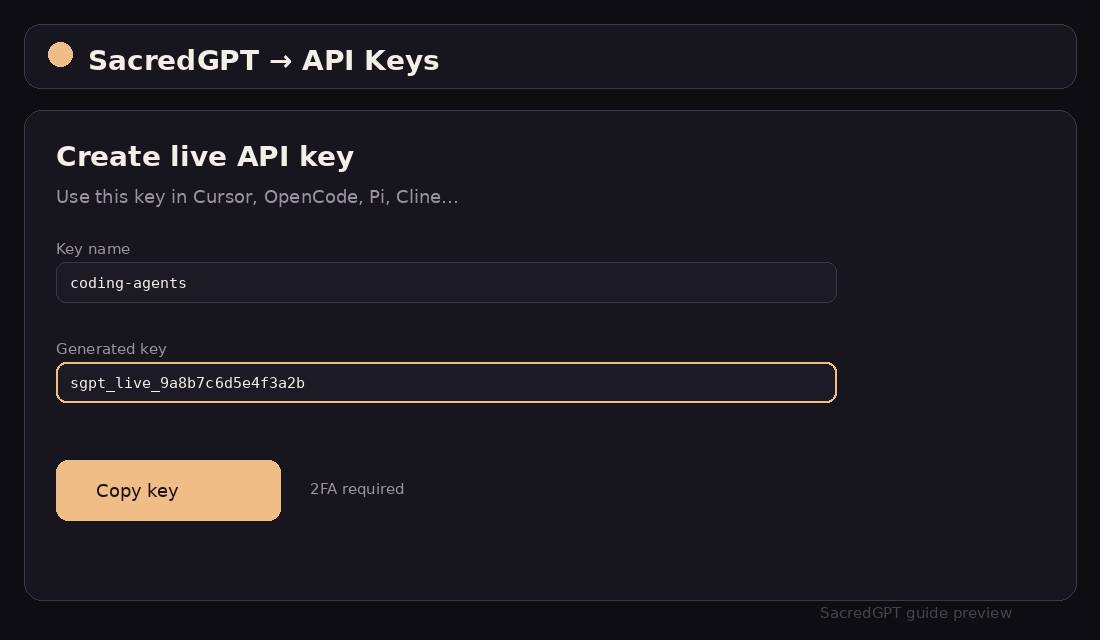
SacredGPT → API KeysIn SacredGPT open API Keys, enable 2FA, and create a live key. You will reuse it across agents.
Connect SacredAI Heretic to Cursor through the OpenAI-compatible API.
01 — Version & UI Path
02 — Step-by-Step Setup
In SacredGPT open API Keys, enable 2FA, and create a live key. You will reuse it across agents.
Cursor Settings → Models (or Cmd+/Ctrl+, and search OpenAI). Enable Override OpenAI Base URL.
Base URL: https://sacredgpt.pro/v1. Paste sgpt_live_… into OpenAI API Key.
Base URL: https://sacredgpt.pro/v1
API Key: sgpt_live_...Add Model with exact IDs: sacredai-heretic.
sacredai-heretic03 — Configuration Example
{
  "openai.apiBase": "https://sacredgpt.pro/v1",
  "openai.apiKey": "sgpt_live_9a8b7c6d5e4f3a2b1c0d",
  "cursor.modelNames": [
    "sacredai-heretic"
  ]
}
04 — Troubleshooting
Verify that 2FA is enabled in your SacredGPT account. Live API key issuance requires active 2FA.
Install your organisation's trusted root certificate in the system trust store. Do not disable TLS verification for the whole process.
Tell us what happened and what you expected. The page address and browser details help us reproduce it faster.